Example programs
Programs to copy, run and modify, from the simplest to the most elaborate
Every program on this page has been tested and works. Copy them into the editor
(EDIT), validate with Ctrl+S, then call the
procedure from the REPL. Do not hesitate to change the numbers to see what happens,
it is the best way to learn.
Basic shapes
The universal polygon
A single procedure for every regular polygon : you give the number of sides and their length. The turn is always 360 divided by the number of sides.
TO POLYGON :N :SIDE
  REPEAT :N [ FD :SIDE RT 360 / :N ]
END
Try : POLYGON 3 100 (triangle), POLYGON 5 80
(pentagon), POLYGON 8 60 (octagon), POLYGON 36 12
(almost a circle).

POLYGON 8 70 : a regular octagon.
The star
By turning through a larger angle than for a polygon, the path crosses itself and forms a star :
TO STAR :SIDE
  REPEAT 5 [ FD :SIDE RT 144 ]
END
REPEAT 5 [ FD 150 RT 144 ] : the five-pointed star.
The staircase
TO STEP :H
  FD :H RT 90 FD :H LT 90
END

TO STAIRS :N :H
  REPEAT :N [ STEP :H ]
END
Call STAIRS 6 30. Notice how STAIRS relies on
STEP : you build a big program out of small bricks. That is the
whole art of Logo programming.
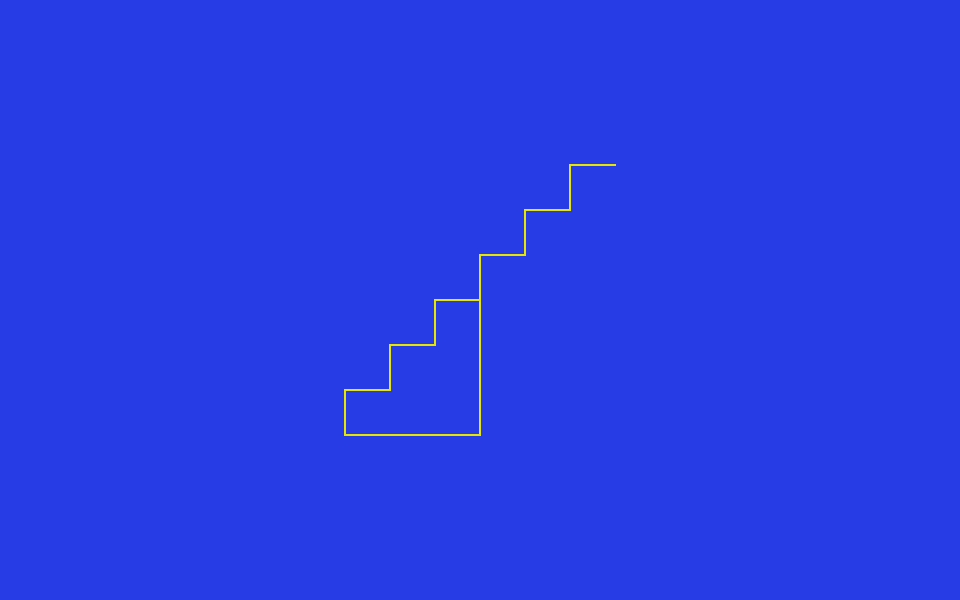
STAIRS 6 30 : six steps.
Rosettes & spirals
The rosette of squares
You repeat a figure while turning it a little each time. Here, 12 squares spaced by 30 degrees (12 × 30 = 360, a full turn) :
TO SQUARE :C
  REPEAT 4 [ FD :C RT 90 ]
END

TO ROSETTE
  CS
  REPEAT 12 [ SQUARE 80 RT 30 ]
END
ROSETTE : twelve squares turned by 30°.
The square spiral
On each turn, the side grows. We use REPCOUNT, which gives the number
of the current iteration :
TO SPIRAL
  CS
  REPEAT 40 [ FD REPCOUNT * 5 RT 90 ]
END
SPIRAL : the side grows on every turn.
The smooth spiral
By turning through an angle that is not a divisor of 360, you get a rounded spiral :
TO SPIRO
  CS
  REPEAT 100 [ FD REPCOUNT RT 59 ]
END
SPIRO : a rosette made with a 59° angle.
The project: drawing a house
Here is a complete project, in the spirit of the Logo primer : you draw a house by assembling it from simple bricks, a square for the wall, a triangle for the roof.
TO WALL
  REPEAT 4 [ FD 80 RT 90 ]
END

TO ROOF
  REPEAT 3 [ FD 80 RT 120 ]
END

TO HOUSE
  CS
  WALL
  FD 80        ; go up to the top of the wall
  RT 30        ; orient for the roof
  ROOF
END
Call HOUSE. The secret is in the placement : after drawing the
wall, the turtle is back at its start ; we send it up along the wall, tilt it by
30 degrees, and the roof lands right on top.

HOUSE : a square wall topped by a triangular roof.
DOOR procedure and a
WINDOW procedure, then call them from HOUSE. Remember to
lift the pen (PU) to move the turtle without drawing, and to lower it
(PD) before drawing.
A village
Once the wall and the roof are defined, you can line up several houses to make a row. For each house we draw the wall then the roof, come back to the foot of the wall, then lift the pen to shift to the right. We start far enough to the left so the whole row fits on screen :
TO VILLAGE :N
  CS
  PU LT 90 FD 220 RT 90 PD                 ; place the turtle on the left
  REPEAT :N [
    WALL  FD 80 RT 30 ROOF  LT 30 BK 80     ; one house (wall + roof)
    PU RT 90 FD 90 LT 90 PD                ; shift to the right
  ]
END
Call VILLAGE 5 for five houses side by side (up to five fit on screen).
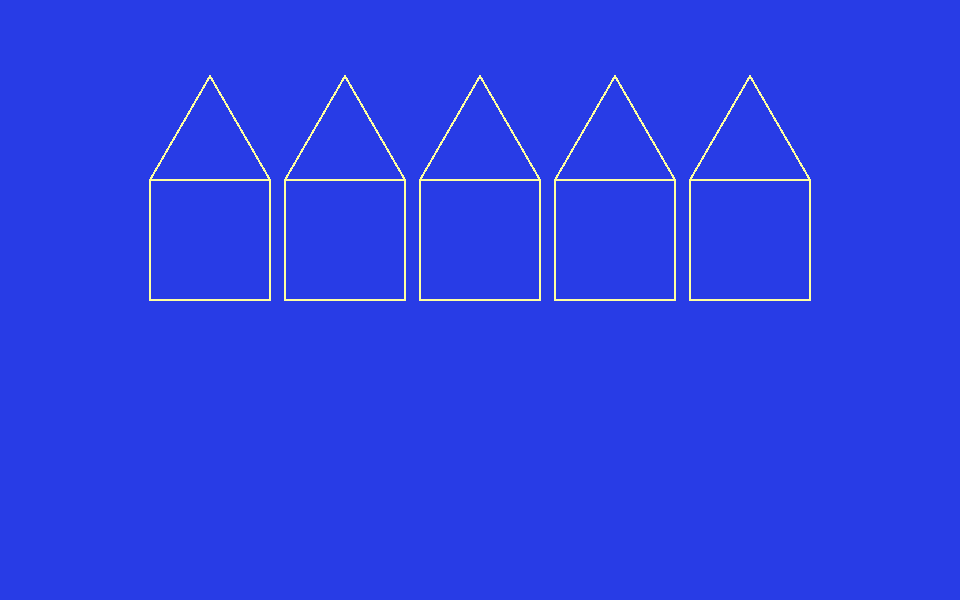
VILLAGE 5 : a row of houses with roofs.
Playing with colours
The rainbow fan
We change the pen colour on each spoke by using REPCOUNT as the
colour code :
TO FAN
  CS
  REPEAT 15 [ SETPC REPCOUNT FD 120 BK 120 RT 24 ]
END
FAN : one spoke per palette colour.
The filled square
We draw a square, then fill it. SETFC chooses a fill colour distinct
from the outline. FILL fills the area that contains the
turtle : after drawing the square the turtle is back on a corner, that is
on the line. So we must first bring it inside the square,
otherwise the fill spills out instead of colouring the inside :
TO FILLEDSQUARE
  CS
  SETPC 7     ; white outline
  SETFC 1     ; red fill
  REPEAT 4 [ FD 80 RT 90 ]
  PU FD 40 RT 90 FD 40 PD   ; move inside the square
  FILL
END
Fractals: the power of recursion
A recursive procedure calls itself. It is the perfect tool for drawings that repeat at every scale.
The tree
A trunk, then two smaller branches, which split in turn, until the branches grow too short to continue.
TO TREE :T
  IF :T < 5 [ STOP ]      ; stop when the branch is too small
  FD :T
  LT 30 TREE :T * 0.7   ; left branch
  RT 60 TREE :T * 0.7   ; right branch
  LT 30
  BK :T                  ; back to the foot of the branch
END

TO DRAWTREE
  CS
  SETH 0
  BK 100
  TREE 60
END
DRAWTREE : each branch splits into two smaller ones.
Change the 0.7 (the shrink rate) or the angles to get very different
trees.
The Koch snowflake
Each side of the snowflake is replaced by a broken line, itself made of smaller broken lines :
TO KOCH :L :N
  IF :N = 0 [ FD :L STOP ]
  KOCH :L / 3 :N - 1
  LT 60
  KOCH :L / 3 :N - 1
  RT 120
  KOCH :L / 3 :N - 1
  LT 60
  KOCH :L / 3 :N - 1
END

TO SNOWFLAKE :N
  CS
  REPEAT 3 [ KOCH 150 :N RT 120 ]
END
SNOWFLAKE 3 : each side is split three times over.
Call SNOWFLAKE 3. Try SNOWFLAKE 1,
SNOWFLAKE 2, SNOWFLAKE 4 to watch the detail grow at each
level.
Text & computation
The times table
TO TIMESTABLE :N
  FOR [ I 1 10 ] [
    ( PRINT :N "x :I "= :N * :I )
  ]
END
Call TIMESTABLE 7. The parenthesised form
( PRINT … ) lets you print several items on the same line, separated by
a space.
Recursive countdown
TO COUNTDOWN :N
  IF :N = 0 [ PRINT "GO STOP ]
  PRINT :N
  COUNTDOWN :N - 1
END
Computing a factorial
A recursive operation that returns a result with OUTPUT :
TO FACT :N
  IF :N < 2 [ OUTPUT 1 ]
  OUTPUT :N * FACT :N - 1
END
Test it with PRINT FACT 5 (which prints 120).
A little dialogue
We ask the user for their name, then greet them :
TO HELLO
  READ [ WHAT IS YOUR NAME ] "NAME
  ( PRINT "HELLO :NAME )
END
Taking a word apart and back together
A word (a character string) is handled with a few basic primitives. A
literal word is written with a leading quote : "CAT. Careful :
square brackets [ ] make a list, not a word.
PRINT FIRST "CAT
PRINT LAST "CAT
PRINT BUTFIRST "CAT
PRINT COUNT "CAT
PRINT WORD "GOOD "BYE
PRINT UPPERCASE "cat
Prints in turn C (first character), T (last),
AT (but-first), 3 (the number of characters),
GOODBYE (the two words joined) and CAT.
Reversing a word
By taking the word apart character by character, we reverse it with
recursion : we put the last character in front of the reversed rest. The base
case is the empty word (").
TO BACKWARDS :WORD
  IF EMPTY? :WORD [ OUTPUT " ]
  OUTPUT WORD LAST :WORD BACKWARDS BUTLAST :WORD
END
PRINT BACKWARDS "HELLO prints OLLEH. (The
REVERSE primitive does this directly.)
Counting the vowels
We count the vowels in the rest of the word, then add 1 if the first
character is one. MEMBER? tests membership of the list of
vowels :
TO COUNTVOWELS :WORD
  IF EMPTY? :WORD [ OUTPUT 0 ]
  LOCAL "REST
  MAKE "REST COUNTVOWELS BUTFIRST :WORD
  IF MEMBER? UPPERCASE FIRST :WORD [ A E I O U Y ] [ OUTPUT :REST + 1 ]
  OUTPUT :REST
END
PRINT COUNTVOWELS "EXTRAORDINARY prints 6.
LOCAL.
The MAKE command writes a global variable. Without the
LOCAL "REST line, each recursive call would overwrite the
:REST of the calls still waiting : on the way back we would read
a corrupted value and the count would be wrong. Golden rule : every working
variable of a recursive procedure must be declared LOCAL. The
parameter :WORD, on the other hand, is already private to each
call automatically.
Recognising a palindrome
A predicate (it returns TRUE or FALSE) : is the word equal to its
reverse, ignoring case thanks to UPPERCASE ? It reuses the
BACKWARDS procedure above.
TO PALINDROME? :WORD
  OUTPUT EQUAL? UPPERCASE :WORD BACKWARDS UPPERCASE :WORD
END
IF PALINDROME? "Level [ PRINT [LEVEL is a palindrome] ] prints
the message.
Arrays & slices
An array is a row of numbered cells, like a set of lockers side by side. Unlike a list, you read or change any cell directly by its number, without going through the others : fast and handy whenever you know the number of items in advance (a game grid, a list of scores…). The first cell is number 1.
A slice is a piece cut out of a word, a list or an array : you give the start and end positions and get just that stretch — a bit like cutting a slice from a loaf of bread.
An array of cells
An array has numbered cells you read and change directly (unlike a
list). Create it with ARRAY, store a value with SETITEM,
read it back with ITEM.
TO SQUARES
  MAKE "T ARRAY 5
  FOR [ I 1 5 ] [ SETITEM :I :T :I * :I ]
  FOR [ I 1 5 ] [ PRINT ITEM :I :T ]
END
SQUARES stores the squares 1, 4, 9, 16, 25 then prints them. An
array is shared : MAKE "U :T does not copy it, both names
refer to the same array (for a real copy : COPYARRAY).
A two-dimensional grid
MDARRAY builds a multi-dimensional array, perfect for a game grid.
You reach a cell by its list of indices [ row column ].
MAKE "G MDARRAY [ 3 3 ]
MDSETITEM [ 2 2 ] :G "X
PRINT MDITEM [ 2 2 ] :G
Prints X : cell (2, 2) of the grid.
A stack
A stack pushes and pops from the top (last in, first out), handy for
traversals. PUSH and POP work on a variable holding a
list. (For a queue : QUEUE / DEQUEUE.)
MAKE "P [ ]
PUSH "P 1
PUSH "P 2
PRINT POP "P
Prints 2 (the last pushed) ; only 1 remains on
the stack.
Taking a slice
SLICE takes a piece of a word, a list or an array, from position
start to end inclusive (the first position is 1). With a
single number in parentheses, it runs to the end.
PRINT SLICE "hello 1 3
SHOW SLICE [ A B C D E ] 2 4
PRINT ( SLICE "hello 4 )
Prints hel, then [B C D], then lo.
Files
GoLogo can read and write text files on disk (in the working
directory). The idea is always the same : you open a file,
make it the “current stream”, and from then on the usual commands work on it
instead of the screen or keyboard (PRINT writes to the file,
READRAWLINE reads a line from it). Always finish with
CLOSE.
Writing to a file
Open a file for writing and make it the current stream : from then on,
PRINT writes to the file instead of the screen. An empty list
[ ] reconnects the screen. Finish with CLOSE.
TO SAVE_SCORES
  OPENWRITE "SCORES.TXT
  SETWRITE "SCORES.TXT
  PRINT [ Alice 100 ]
  PRINT [ Bob 80 ]
  SETWRITE [ ]
  CLOSE "SCORES.TXT
END
Reading a file line by line
READRAWLINE outputs the next line ; EOF? tells
whether anything is left. WHILE repeats to the end.
TO READ_SCORES
  OPENREAD "SCORES.TXT
  SETREAD "SCORES.TXT
  WHILE [ NOT EOF? ] [ PRINT READRAWLINE ]
  SETREAD [ ]
  CLOSE "SCORES.TXT
END
Prints the two lines written above.
Loading a whole file at once
Simpler still : FILETOARRAY loads a whole text file into an
array, one line per cell (no need to open or close). COUNT gives the
number of lines to iterate over.
TO SHOW_FILE
  MAKE "L FILETOARRAY "SCORES.TXT
  FOR [ I 1 COUNT :L ] [ PRINT ITEM :I :L ]
END
The command refuses a binary file (image, executable…) : it only reads text, so it never prints garbage.
Music
The scale
TO DOREMI
  PLAY [ DO RE MI FA SOL LA SI ]
END
A short tune
TO TUNE
  TEMPO 8
  PLAY [ DO DO DO RE MI ]
  PLAY [ RE DO MI RE RE DO ]
END
Drawing in time to music
You can mix graphics and sound : on each side of the polygon, play a note.
TO MUSICSQUARE
  CS
  FOREACH [ DO MI SOL DO ] [
    PLAY :?
    FD 80
    RT 90
  ]
END
Beyond these small examples, GoLogo ships with more complete programs (figures, rendered images, real little games). To learn how to list, load and try them, head over to getting started, section “Exploring the bundled examples”.
And now, it is your turn to invent your own programs. Happy Logo !